
Hanging Protocol Tutorial
Hanging Protocol Tutorial
Hanging Protocols allow you to save the layout of your viewports and the order of series they display. This allows you to quickly and easily display a study in the format that is most helpful.
Each Protocol contains a set of rules that determine which kind of study the protocol can be applied to and one or multiple Stages that define the viewport layout. Hanging Protocols can be created as well as shared across ProView and ProView Web.
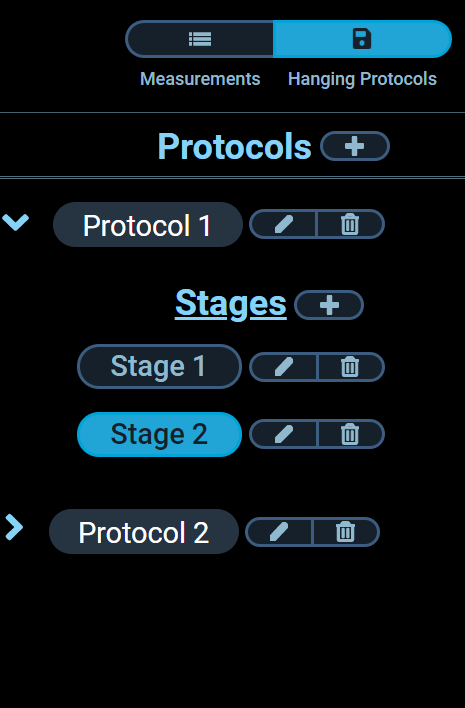
To manage your Hanging Protocols click on the Hanging Protocol Tool window located on the right side of the screen (ProView), or the Hanging Protocol Button at the top right of the screen (ProView Web). This will display a list of all your Hanging Protocols that are relevant to the current study. Each protocol can be opened to display its stages, to apply one of the them click on the button containing the stage's name.
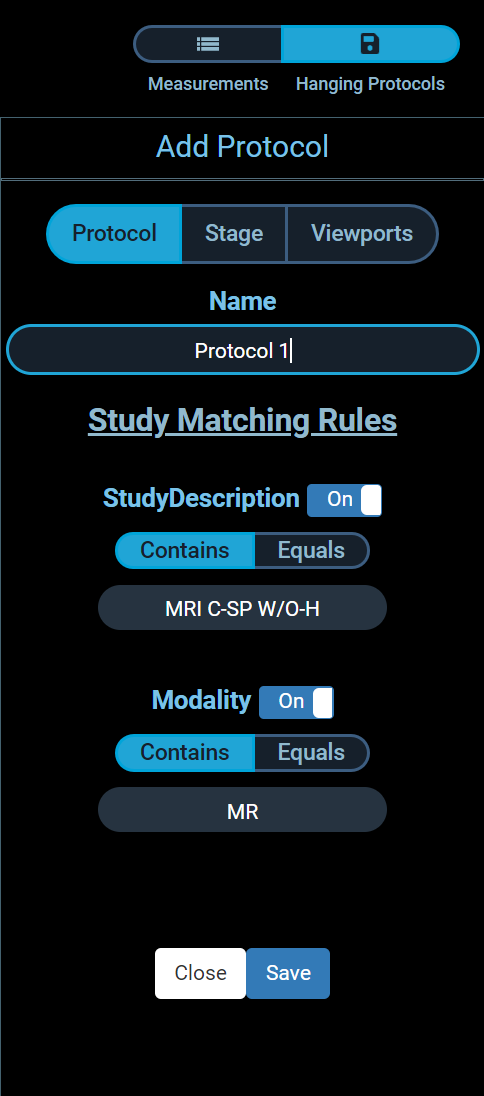
To create a new protocol click on the Add Protocol button at the top of the list, this will redirect you to a new screen containing the protocol information. From here you can edit the study rules of the protocol to set which Study Description and/or Modality this protocol should work for. Additional options like turning rules on/off and setting the rules to equals/contains are available here as well.
Clicking on the next tab brings you to the stage screen where you can rename the stage and are presented with a grid which can be clicked to quickly access a viewport's rule screen.
The other way to access a viewport's rule screen is the select it from the viewports dropdown list. This screen allows you to choose which series should be displayed in the viewport, additional contains/equals options are also available here.
To add a new stage to a protocol click the add stage button next to the Stages title, this will copy the current viewport layout as a new stage of the protocol
Back on the main protocol screen you can remove a protocol by clicking on the delete button next to the protocol's name. If you want to delete just an individual stage from the protocol then click on the delete button next to the stage's name.
To edit a protocol click on the edit button next to the protocol's name, this will bring you to the protocol's information screen and you will be editing the first Stage of the Protocol. From here you can edit any of the protocol and viewport rules, if you wish to edit another stage in the protocol select it from the stages dropdown list. If you wish to edit a specific stage go to the main protocol and click on the edit button next to the stage.